
|
Table of Contents(Partial listing:)
|
Make the Index into a floating paletteThe Index menu works fairly well if there are only a few cards in the stack, but it can quickly become too long to be navigated easily. An easier user interface for a long list of choices is a clickable list. In order to make the Index accessible from any card, we'll make it into a floating palette.By now you should be able to create and edit a new stack without much trouble. Create a new stack with "Index" as both its name and title. In the Stack Properties dialog (Properties tab -> Components,) set the mainstack to TSTS. Close the properties dialog. Resize the stack so that it is longer than it is wide -- how high you make it is up to you, but it should be long enough to display at least ten or fifteen names in a scrolling field.
Cmd-Option-click the field with the arrow tool to edit its script. We will use the functionality of the menu script we wrote before, but change it slightly to work from a substack. The primary change we need to make is to provide a full identifier for the card we want to go to in the Records background. Because the script will look for the background in the current Index stack unless specified otherwise, we need to add the full reference to the card. Put this into the script of the field: Save the field script and open the script of the Index stack.on mouseUp get the clicktext go cd lineOffset(it,me) of bg "records" of stack (the mainstack of this stack) end mouseUp We will insert an openStack handler that will not only block the one in the main stack from executing, but will also update the index listing when the Index stack opens. Set the script of the Index stack to this: Save the Index stack to disk.on openStack makeIndexMenu end openStack Revise the makeIndexMenu handler Though we aren't going to change the name of the handler, the script will no longer place the Index in the menu. Instead, it will place the listing in the field on the Index palette stack. Bring the main stack to the front and open the stack script. We need to change the line that places the index into the menu, and we need to expand the reference for the Records background, since another stack will be calling this handler. Make the changes to the makeIndexMenu script as indicated in red:
The Index menu is no longer necessary, though we do need a menu item that will display the new Index palette on demand. The standard rule is that a menu must have at least two menu items; if there is only one menu item then it should be placed into another existing menu instead. It is up to you whether you think the Show Index menu item should go in the File or Edit menu, but this tutorial will put it at the end of the Edit menu. Open the properties dialog for the Edit menu button. In the Extras tab, add a hyphen and a "Show Index" line at the bottom of the menu item list so it looks like this: Open the script of the Edit button and add a case statement to the menuPick handler that deals with the Index stack:Undo/Z - Cu&t/X &Copy/C &Paste/V - Show &Index/I
Save the script and try out the Show Index item.
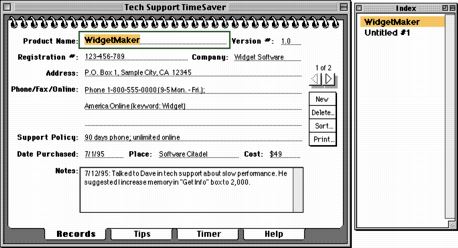
Now that we have an Index palette, there is no need to keep the Index menu button. Delete it from the stack. You can do that by going into background editing mode and selecting the button with the arrow tool, or you can use the Control Browser to select it. Then hit the Delete key on your keyboard. Or just type this into the message box: Save the stack to disk and try it out.delete btn "index" of grp "menugroup" Optional exercise: Add a preOpenStack handler to the Index stack that will position the Index next to the main stack when it opens.
  |


All contents copyright (C) 1997, HyperActive Software. All rights reserved.
Revised: December 3, 2001
URL: http://www.hyperactivesw.com/mctutorial/tutorialtoc.html
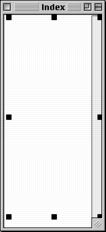 Create a new field by choosing the Tools Palette from the Tools menu, clicking on the field tool, and dragging out a field that covers most of the area on the new card. Double-click the field with the arrow tool to name it "Product List". Click on the Appearance tab in the properties dialog and set the field's style to "scrolling". Just for the effect, uncheck the Opaque and Show Borders checkboxes so that the body of the field will be transparent. Click the Font button and set the field's font to Helvetica, the text style to Bold, and the text size to 12. Click the Behavior tab and lock the text. You'll notice that that Traversal On checkbox automatically unchecks itself. In many cases this is desired behavior, such as for labels, but without traversal the field will not respond to mouseclicks. So re-check the Traversal On checkbox to allow mouse events in the field. Since we want a list field, also check the "List Behavior" checkbox. Close the properties dialog.